Install & download
Install from a ZIP
Extract the download, then load its folder in your browser’s extension manager.
Requires developer mode and manual updates. This version may differ from the store release.
File and checksum
- File
- yi-chart-0.7.1.zip
- Browser baseline
- Chrome 116+; use a currently supported desktop Edge release.
- SHA-256
0dc3605c5ba9f4f8879ae76e67de9d8519a01c64886c9588cd3f3d6577883129
Use the checksum to verify the downloaded file. Keep the extracted installation folder in place.
浏览器插件暂未在商店公开提供,可以使用上方 ZIP 手动安装。如果只想先排一张盘,也可以直接打开网页版排盘。网页版和插件的功能范围不同,本页介绍浏览器插件的安装。
安装前准备
这份教程面向桌面版 Chrome 和 Edge。安装包要求 Chrome 116 或更高版本;请使用仍受支持的浏览器版本。Firefox、Safari 和手机浏览器不在这份安装教程的范围内。受公司或学校管理的浏览器可能不允许开发者模式,需要由管理员决定。
ZIP 是插件文件,不是双击运行的安装程序。你不需要安装 Node、下载源代码或执行命令来完成安装。
1. 下载并解压到固定文件夹
点击上方“下载 ZIP”,下载完成后使用系统的“全部解压缩”。例如在 Windows 中,将内容放到 D:\BrowserExtensions\YiChart。这只是目录示例,也可以使用你自己的普通文件夹。
打开解压目录,确认能直接看到 manifest.json。稍后要选择的就是这一层,不能选择 ZIP,也不能选只包含另一个文件夹的外层目录。
YiChart/          ← 稍后选中这个文件夹
├─ manifest.json
├─ background.js
├─ sidepanel.html
└─ …其他插件文件
这是简化示意,不是让你删除未列出的文件。保持完整解压结果;安装后仍需保留这个目录,不要当作临时文件清掉。
2. 在 Chrome 或 Edge 中加载
Chrome
- 在地址栏粘贴
chrome://extensions/并打开。 - 打开右上角的“开发者模式”。
- 点击“加载未打包的扩展程序”。有的版本叫“加载已解压的扩展程序”,英文为 Load unpacked。
- 选择解压后直接包含
manifest.json的文件夹。
Edge
- 在地址栏粘贴
edge://extensions/并打开。 - 打开“开发人员模式/Developer mode”。
- 点击“加载解压缩的扩展/Load unpacked”。
- 选择解压后直接包含
manifest.json的文件夹。
这些是浏览器内部地址,请复制到地址栏打开;网页不能直接替你打开或确认安装。浏览器版本和界面语言不同,按钮位置或译名可能略有差异。
加载成功后,扩展列表中应该出现本插件,版本与上方下载卡一致,且处于启用状态。若管理器显示红色错误或无法加载,先看下方排错,不要继续配置其他功能。
查看 Chrome 安装界面示例
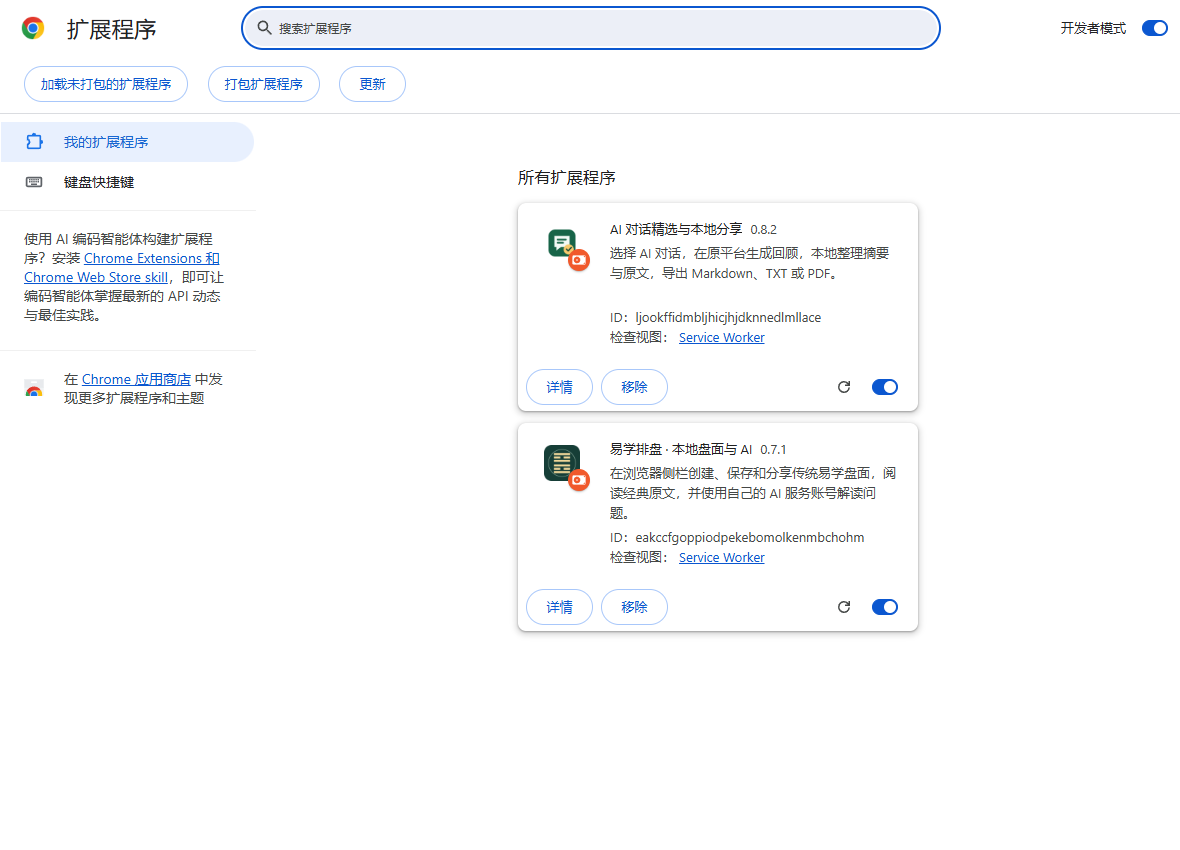
图为中文 Chrome 的独立测试环境。你只需安装正在使用的那一款;右侧开关表示是否启用。Edge 的步骤相同,按钮位置有所不同。
3. 固定入口,确认能打开
从浏览器工具栏的扩展菜单中找到插件,将它固定到工具栏。点击工具栏里的插件图标,确认侧栏打开。先查看排盘类型和输入表单,用演示输入生成一张盘即可验证基本启动;不必配置 API Key 或发送 AI 请求。后续操作见快速开始。
如果已有同一插件的商店版或其他手动副本,先停用其中一个,避免出现两套按钮或重复操作。不同副本的设置与历史不自动共享。
以后怎样更新?
手动加载的版本不会自动跟随商店更新。网站提供新版时,按以下顺序操作:
- 保存正在整理的内容或重要输出,等待当前任务完成。
- 停用该手动插件,保留一份旧程序文件夹作为回退材料。程序文件夹的备份不等于插件数据备份。
- 将新包解压并检查目录,把原安装目录内的程序文件换成完整新版文件。保留原目录位置,不改成每次不同的版本文件夹。
- 回到扩展管理页重载并启用,确认显示新版本;再刷新原来的 AI 对话网页,重新打开侧栏。
不要把“移除旧插件再装一遍”当作普通更新步骤。更换目录、浏览器配置或切换商店版,可能产生不同的扩展身份;现有数据不能保证自动迁移。回退程序文件也不保证能撤销新版对数据的修改。
常见问题
提示找不到 manifest 或无法读取清单
确认已经完整解压,选中的目录内能直接看到 manifest.json。不要选下载目录、ZIP 文件或最外层包装目录。仍失败时,可重新下载并核对 SHA-256。
没有开发者模式,或提示管理员不允许安装
先确认使用的是受支持的桌面浏览器。受管理的设备遵循管理员策略,本教程不要求修改注册表、企业策略或关闭浏览器安全保护。
安装后看不到按钮或侧栏
先在扩展管理页确认已启用,再从工具栏扩展菜单中固定。刷新要操作的普通网页后重新打开。Chrome 商店、浏览器设置等内部页面不能作为插件处理普通网页的验证场景。
关闭浏览器后还需要保留文件夹吗?
需要。浏览器仍从该文件夹读取手动加载版。删除或移动它会导致插件无法使用。
怎样停用或卸载?
暂时不用,在扩展管理页关闭开关即可。确定卸载前,先保存需要保留的导出内容,再点击“移除”。卸载可能删除该扩展的本地设置和记录,网站不会为它自动备份。确认已经卸载后,才清理对应程序目录。
可选:核对下载是否完整
展开上方“文件与校验信息”查看 SHA-256。Windows 可在下载文件所在目录打开 PowerShell,运行:
Get-FileHash -LiteralPath '.\yi-chart-0.7.1.zip' -Algorithm SHA256把输出的 Hash 与网页公布值逐字比较;大小写不影响结果。校验值用于确认文件一致,不能替代浏览器的权限提示。
隐私与后续使用
本插件的数据处理说明见插件隐私公告。教程和 ZIP 下载不会替你提交对话、盘面或 API Key;使用 AI 功能时的数据流以插件政策和相应服务为准。
继续阅读使用说明,或在本页下方反馈问题。请提供浏览器和插件版本、出错步骤,截图前遮住私人信息。
安装步骤参考:Chrome 官方说明、Edge 官方说明。
The extension is not publicly available in the store yet. You can install the ZIP above manually, or try the web chart tool without installing anything. The web tool and extension have different features; this page covers the extension.
Before you start
Use desktop Chrome or Edge. The package declares Chrome 116 as its minimum; keep your browser on a currently supported version. This guide does not cover Firefox, Safari or mobile browsers. A managed work or school browser may block developer mode.
The ZIP contains the extension, not an executable installer. You do not need Node, a source checkout or a command line to install it.
1. Download and extract to a permanent folder
Select Download ZIP above, then extract the entire archive. On Windows, one example is D:\BrowserExtensions\YiChart; another ordinary folder is fine.
Open the extracted folder and find manifest.json. Select this exact folder in the next step, rather than the ZIP or a parent folder that only contains another directory.
YiChart/          <- select this folder
|-- manifest.json
|-- background.js
|-- sidepanel.html
|-- ...other extension files
This is a simplified illustration. Keep all extracted files, including ones not shown here. The browser will continue to use this folder after installation.
2. Load it in Chrome or Edge
Chrome
- Paste
chrome://extensions/into the address bar and open it. - Enable Developer mode at the top right.
- Select Load unpacked.
- Choose the extracted folder that directly contains
manifest.json.
Edge
- Paste
edge://extensions/into the address bar and open it. - Enable Developer mode.
- Select Load unpacked.
- Choose the extracted folder that directly contains
manifest.json.
These are internal browser addresses. Paste them into the address bar; this website cannot open them or approve installation for you. Labels and button positions can vary by browser version and language.
After loading, the extension should appear enabled in the list, with the version shown on the download card. Resolve any loading error before configuring other features.
See an example in Chrome
This screenshot uses a Chinese Chrome interface in a separate test profile. Install only the extension you want to use. The switches on the right indicate whether each extension is enabled. Edge follows the same steps with a different layout.
3. Pin the extension and check startup
Find the extension in your toolbar’s extensions menu and pin it. Click the extension’s toolbar icon and confirm that the side panel opens. Check the chart selector and input form, then create a chart with sample inputs to check basic startup. You do not need an API key or an AI request for this check. Continue with the usage guide.
If a store-installed copy or another manual copy is already present, disable one before use to avoid duplicate actions. Separate installations do not automatically share settings or history.
Updating a manual installation
An unpacked installation does not receive store-managed updates. When a new download is available:
- Save important output and let any active task finish.
- Disable this manual copy and retain the old program folder for rollback. That folder is not a backup of extension data.
- Extract the new archive and replace the program files in the original installation folder with the complete new set. Keep the same folder path.
- Reload and enable the extension in the manager. Check its version, refresh any AI chat pages, and reopen the side panel.
Do not routinely remove and reinstall to update. A new folder, browser profile or store installation can have a different extension identity. Data migration is not guaranteed, and restoring older program files does not necessarily reverse data changes.
Troubleshooting
The manifest cannot be found or read
Extract the whole ZIP first. Choose the directory that directly contains manifest.json, not the ZIP, Downloads folder or an outer wrapper directory. If necessary, download again and compare its SHA-256 checksum.
Developer mode is missing or installation is blocked
Use a supported desktop browser. Managed devices follow their administrator’s rules; this guide does not require registry changes, enterprise policy overrides or disabling browser protection.
There is no toolbar button or side panel
Confirm the extension is enabled, then pin it from the extensions menu. Refresh a normal web page and reopen it. Browser settings and the Chrome Web Store are not suitable pages for testing ordinary page operations.
Can I delete the folder after loading it?
No. Moving or deleting the extracted folder can break the unpacked installation.
How do I disable or remove it?
Switch it off in the extension manager to pause it. Before selecting Remove, save the output you need. Removal may delete local settings and records; this website does not back them up automatically. Delete the program folder only after removing the extension.
Optional: verify the download
Expand File and checksum above. On Windows, open PowerShell in the download directory and run:
Get-FileHash -LiteralPath '.\yi-chart-0.7.1.zip' -Algorithm SHA256Compare the Hash with the value on this page; letter case does not matter. This checks that the file matches the published download, not that every permission should be accepted.
Privacy and next steps
Read the extension’s privacy notice for its data handling. Downloading this package does not submit your conversations, charts or API keys. AI features follow the extension’s policy and the provider you choose.
Continue with the usage guide or leave a comment below with your browser, extension version and reproduction steps. Remove private information from screenshots.
Installation references: Chrome documentation and Edge documentation.